The following Guide shows how I like to setup Docker on Truenas Scale with Dockge as Docker WebUI and also shows how to install Crafty Controller with it. You can use the Dockge instance for every other Docker App as well.
Prepare the Dataset
Click on
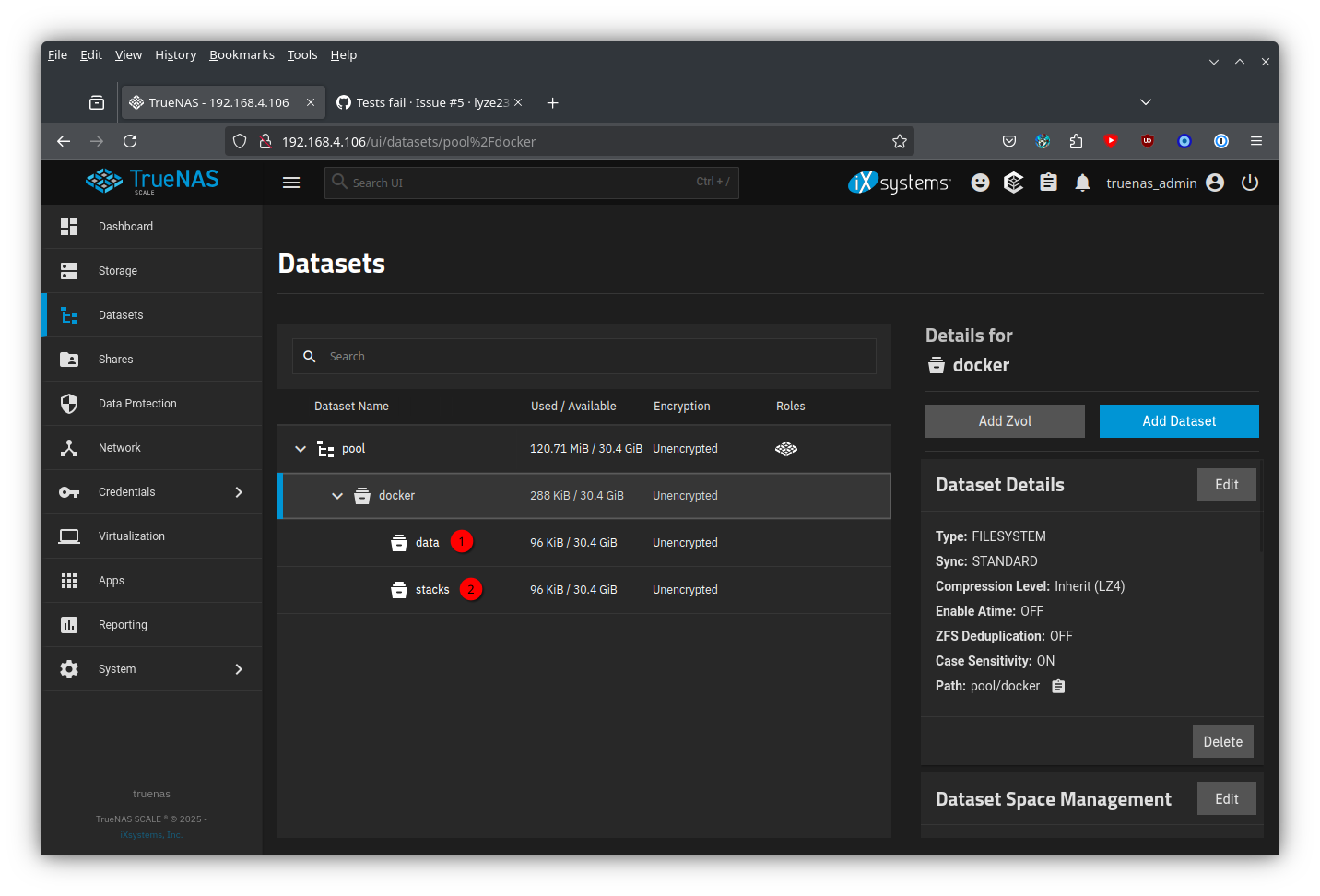
Datasets, then select the storage pool, then click onAdd Dataset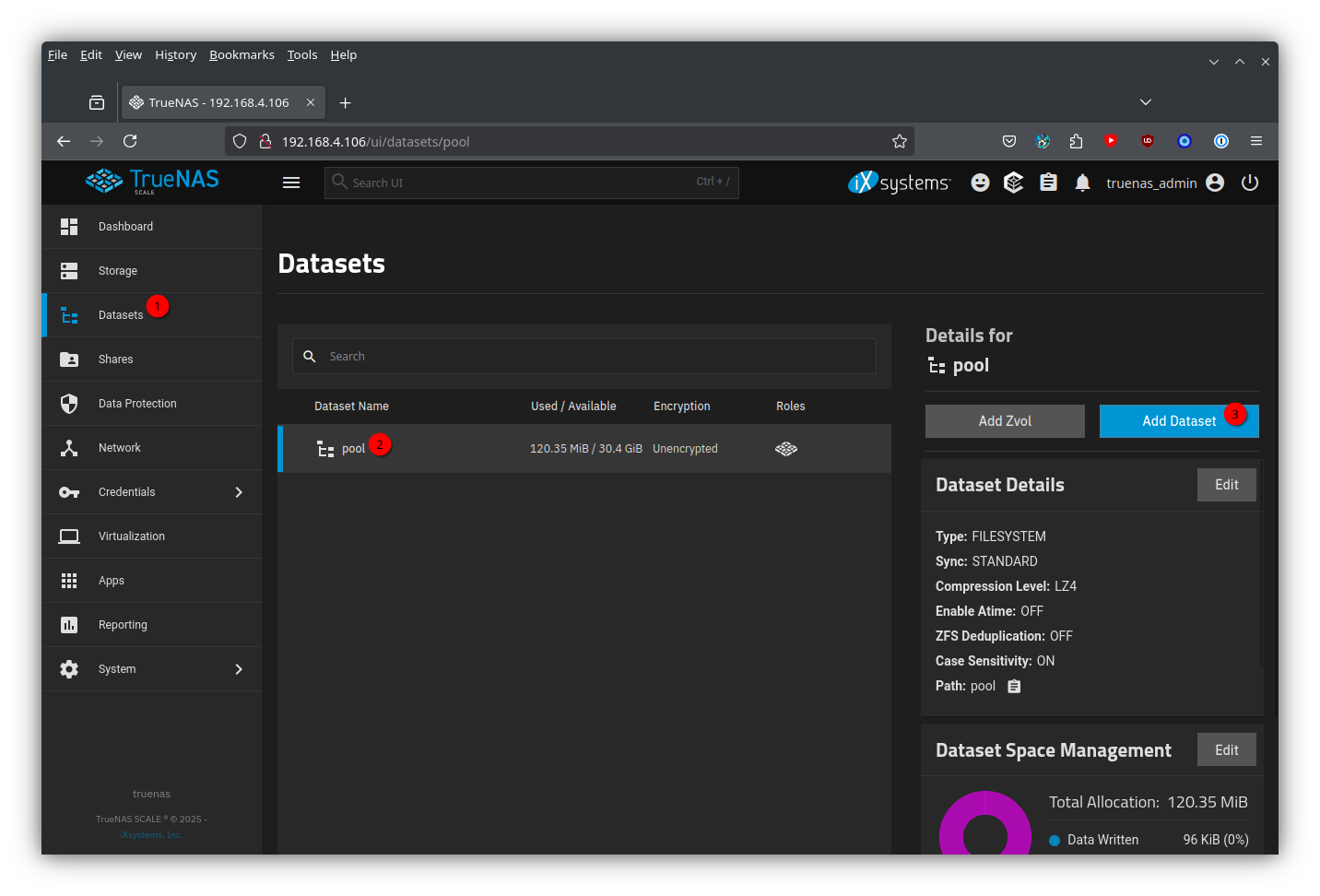
Enter a name, for example
docker, make sure thatGenericis set asDataset Preset, then click onSave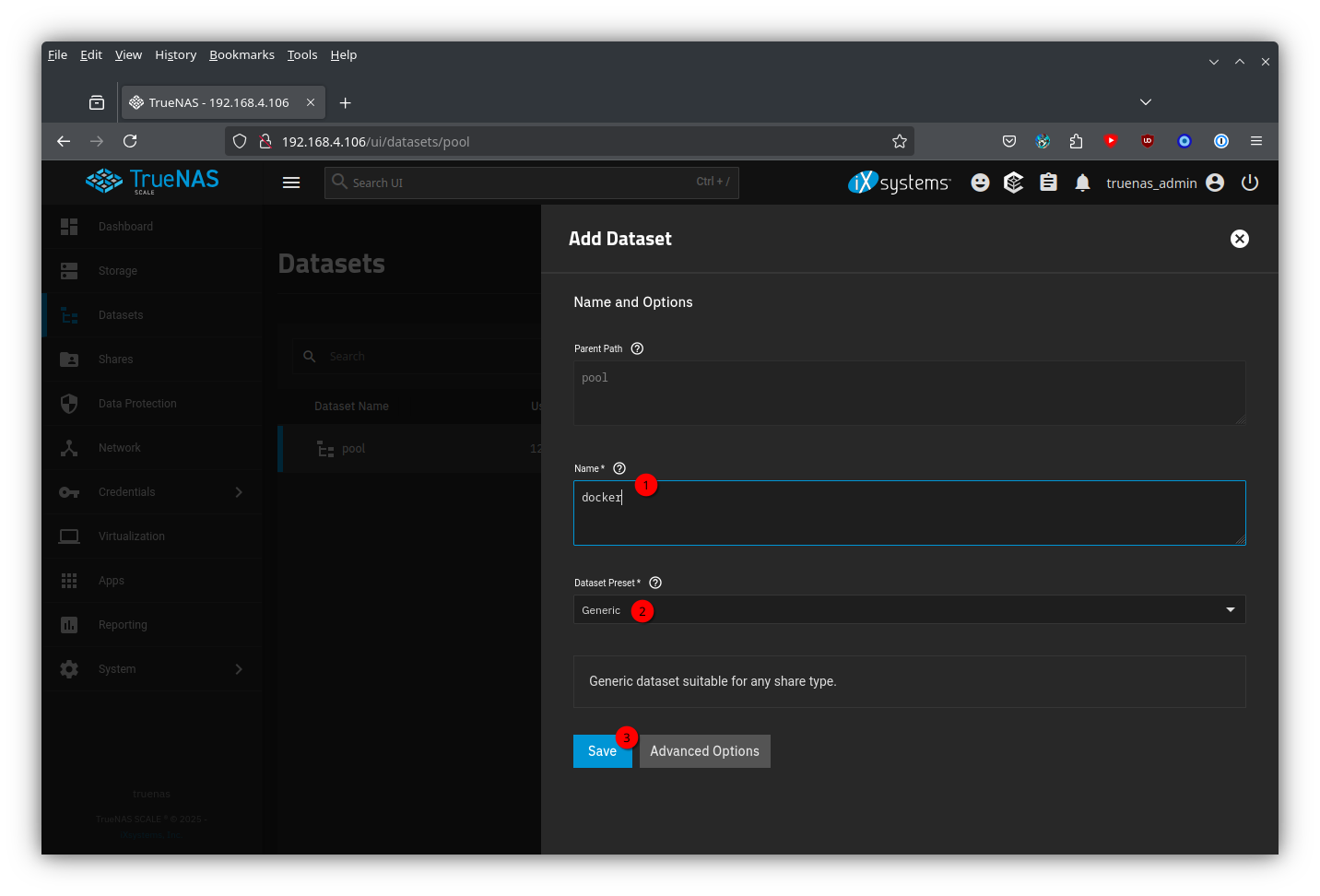
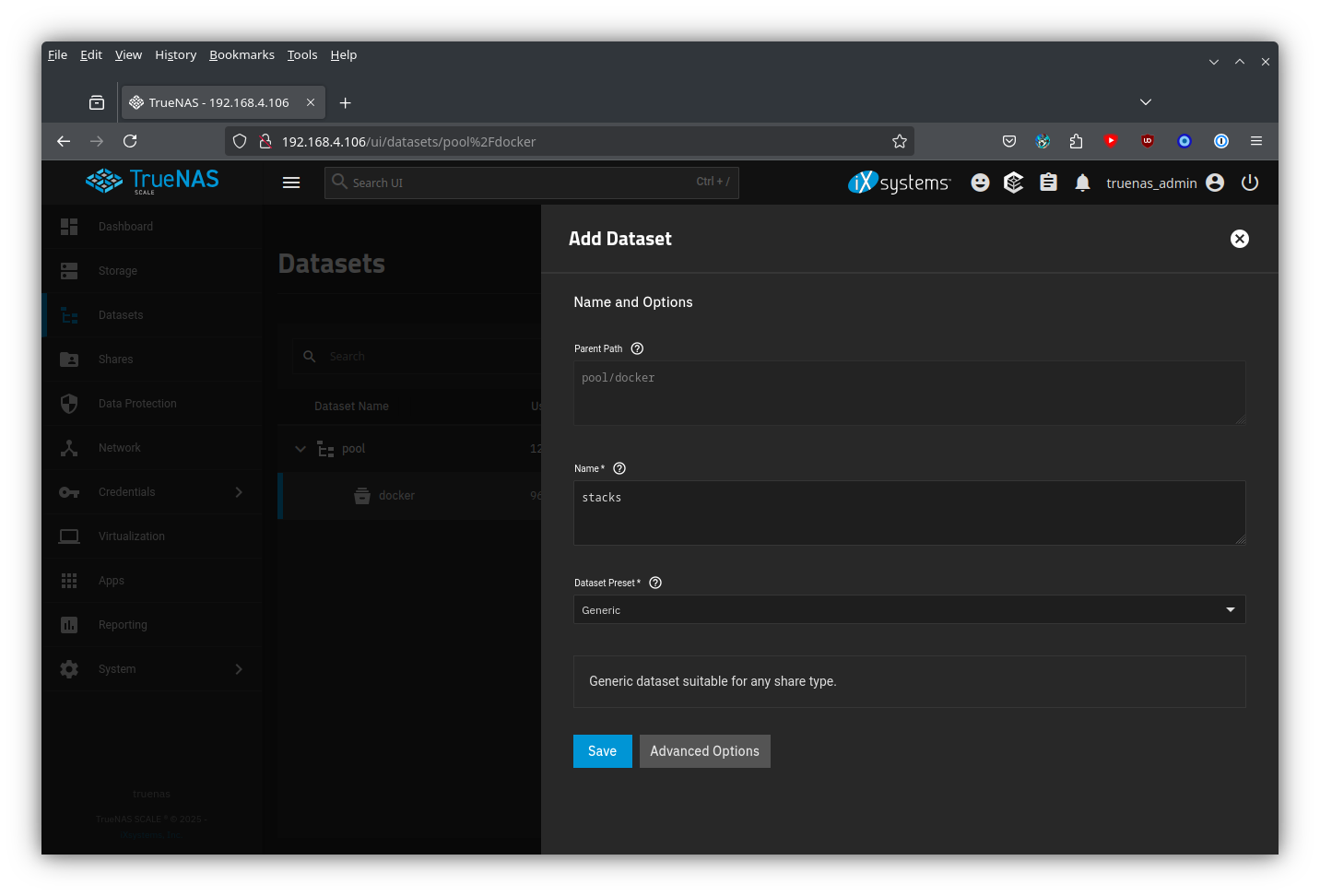
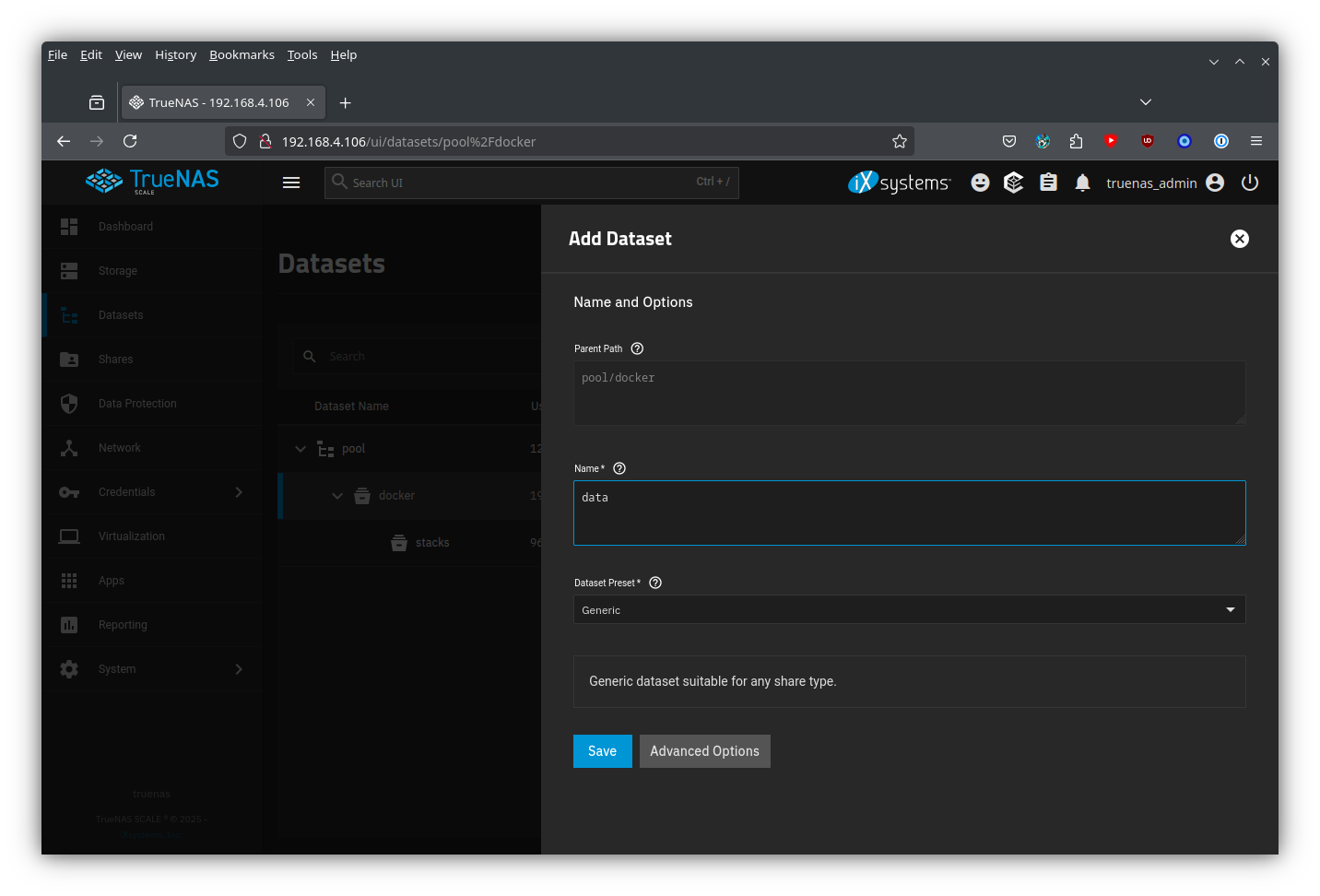
Click on the freshly created
dockerdataset, then create two more sub-datasetsstacksanddatawith the same options
 |  |
|---|
Creating the Dockge container
Click on
Appsthen onDiscover Apps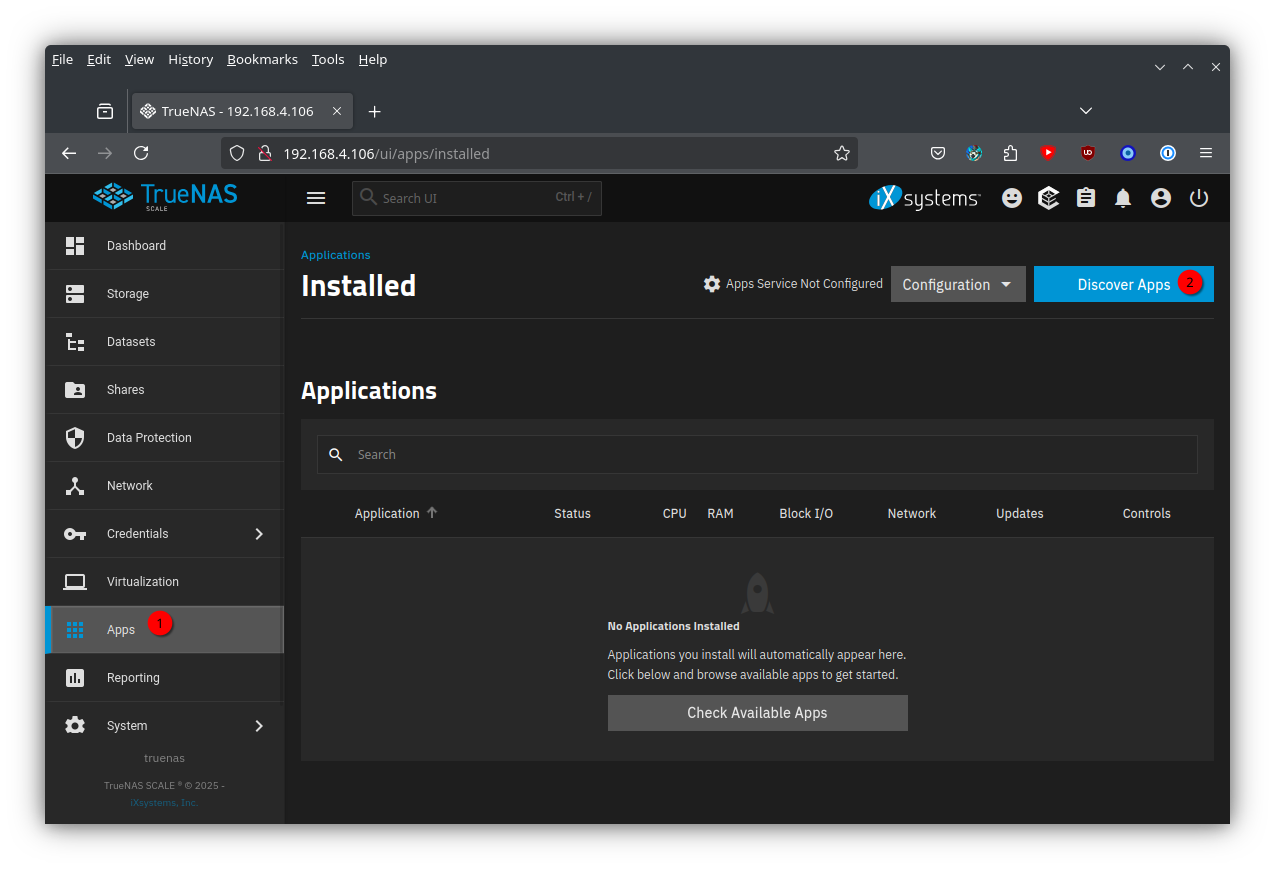
Click on
Refresh Catalog, search fordockgeand click on it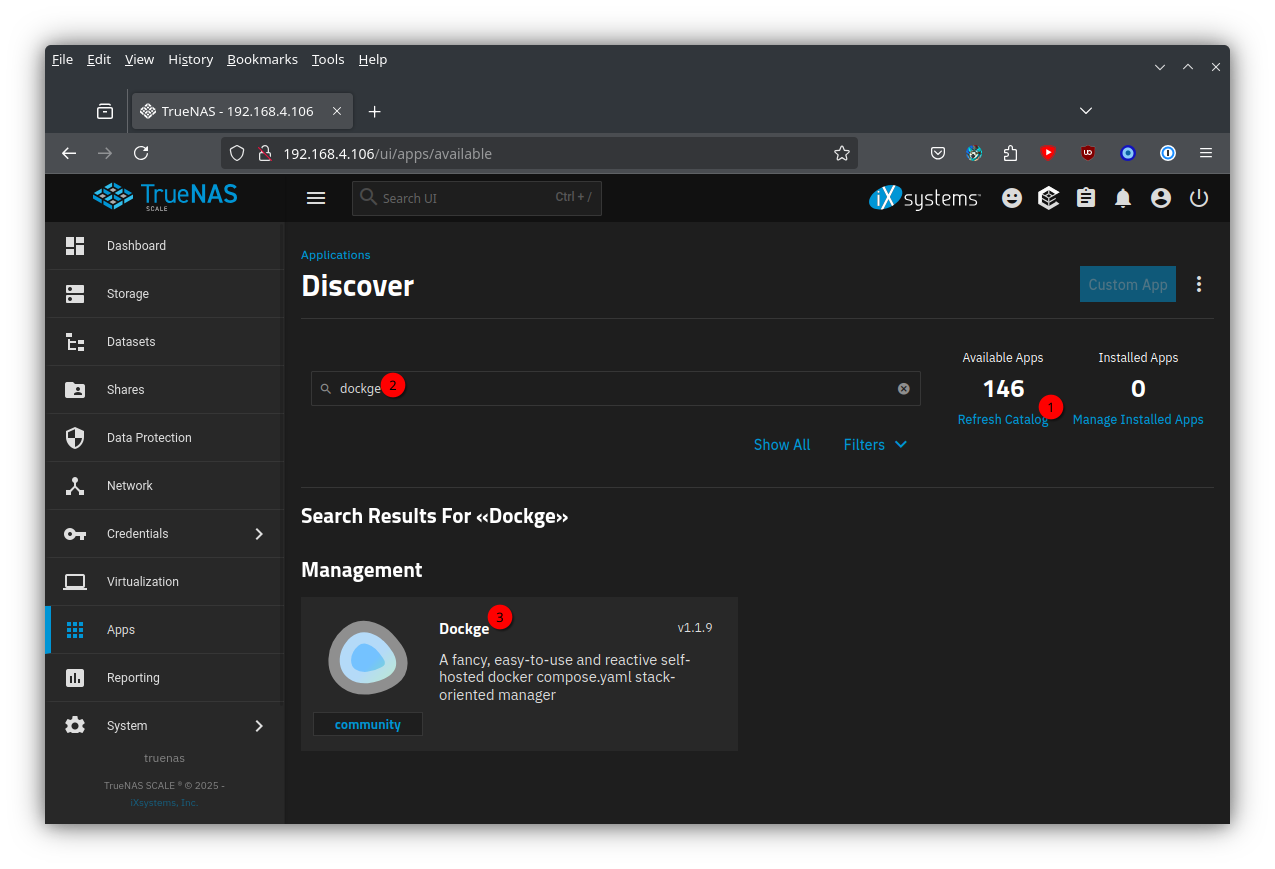
Install the app
If this is your first app, click on
Setup Pool To Install, then select the pool you want to use for your App storage, then click onChoose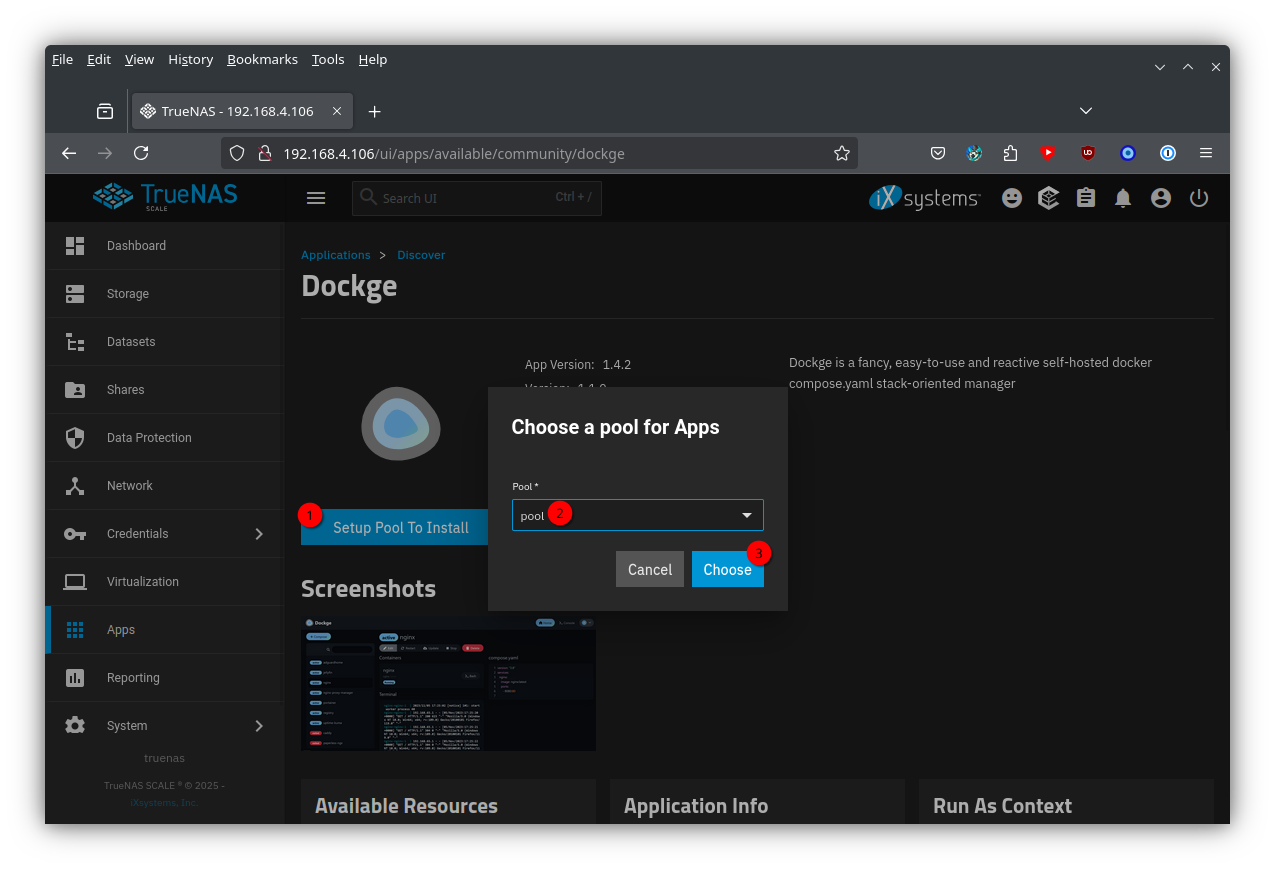
If this is not your first app, then simply click on
Install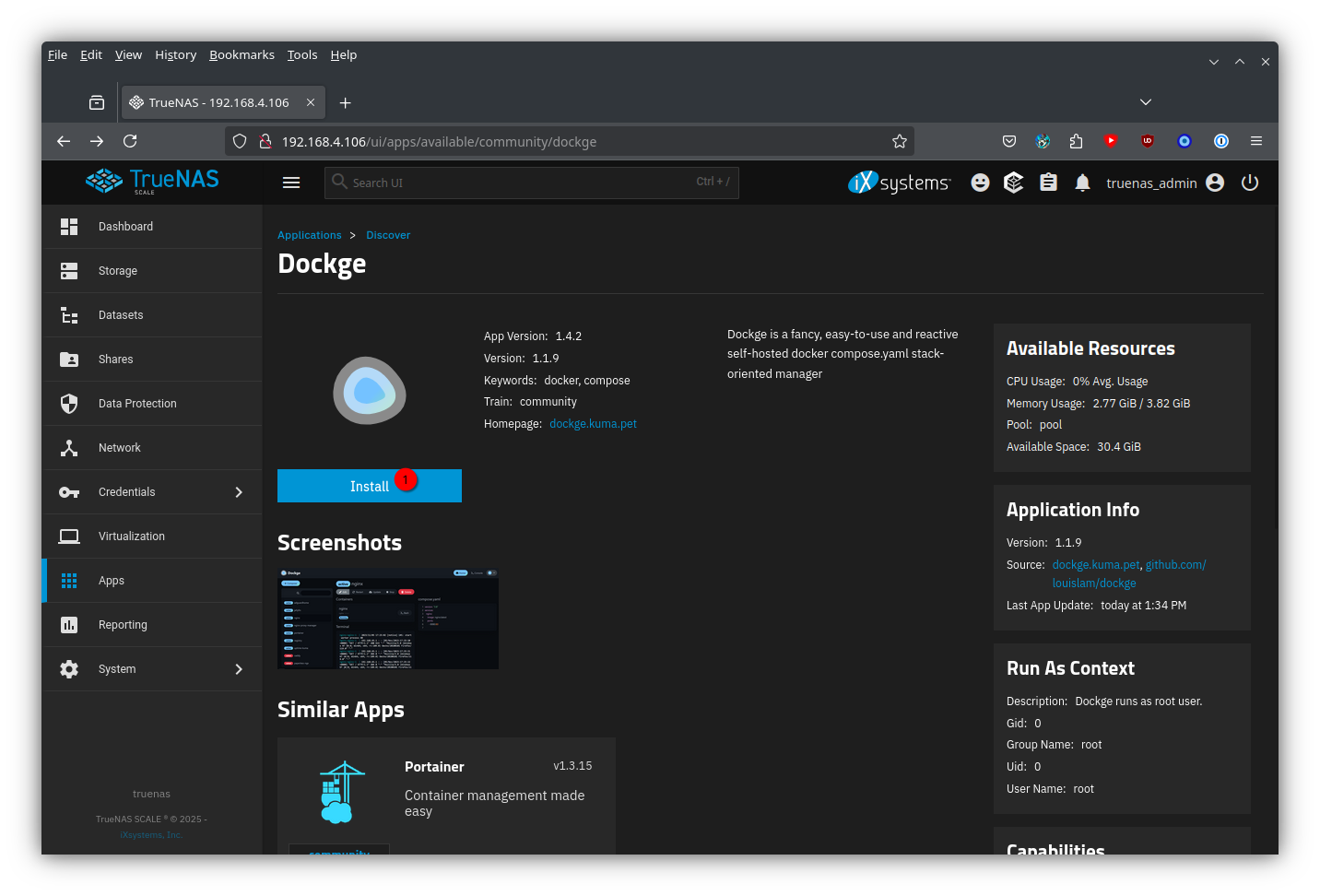
Take note of the
WebUI Portor change it to whatever you like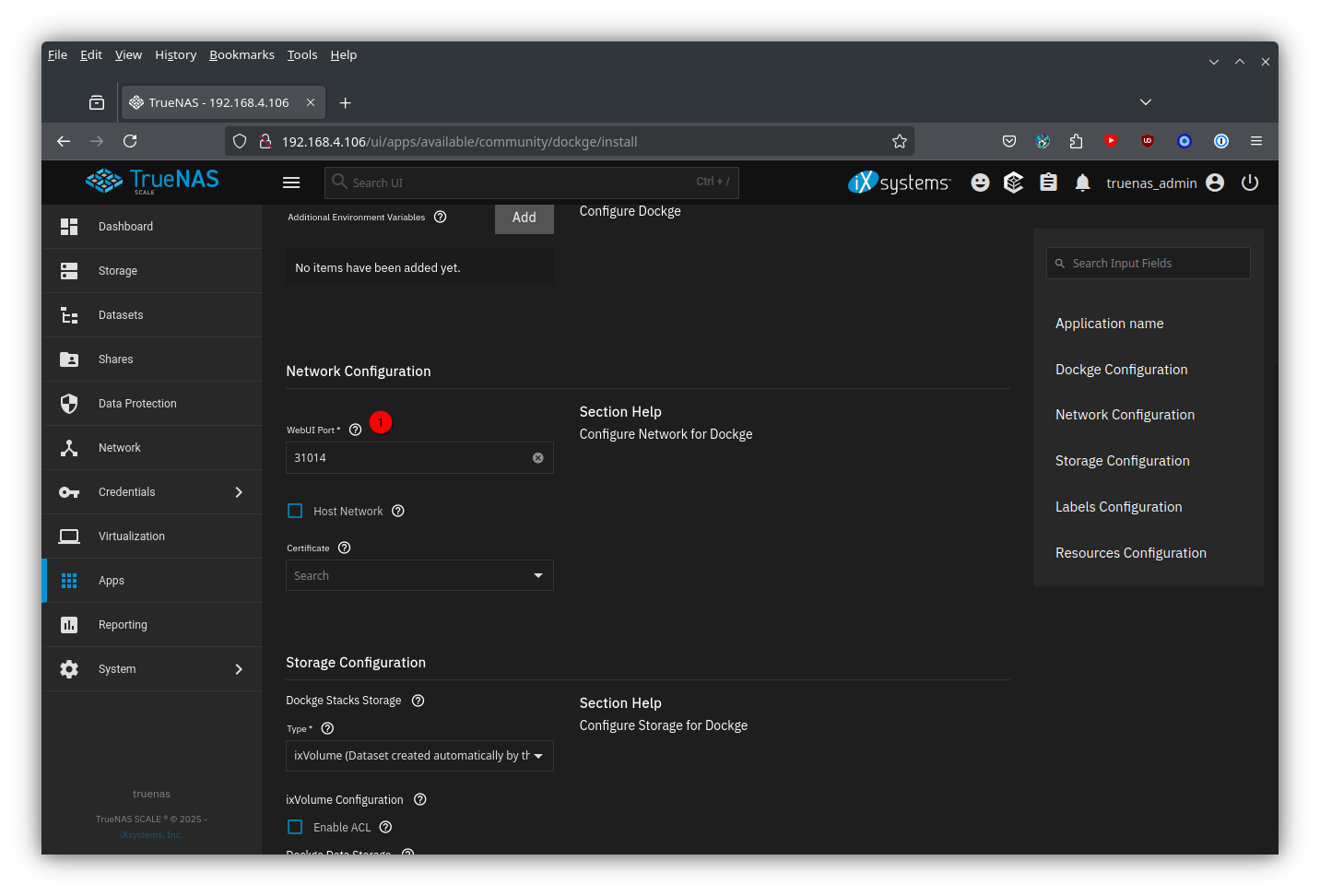
The
Storage Configuration- For
Dockge Stacks StorageselectHost PathasType, then select thestacksdataset as theHost Path - For
Dockge Data StorageselectHost PathasType, then select thedatadataset as theHost Path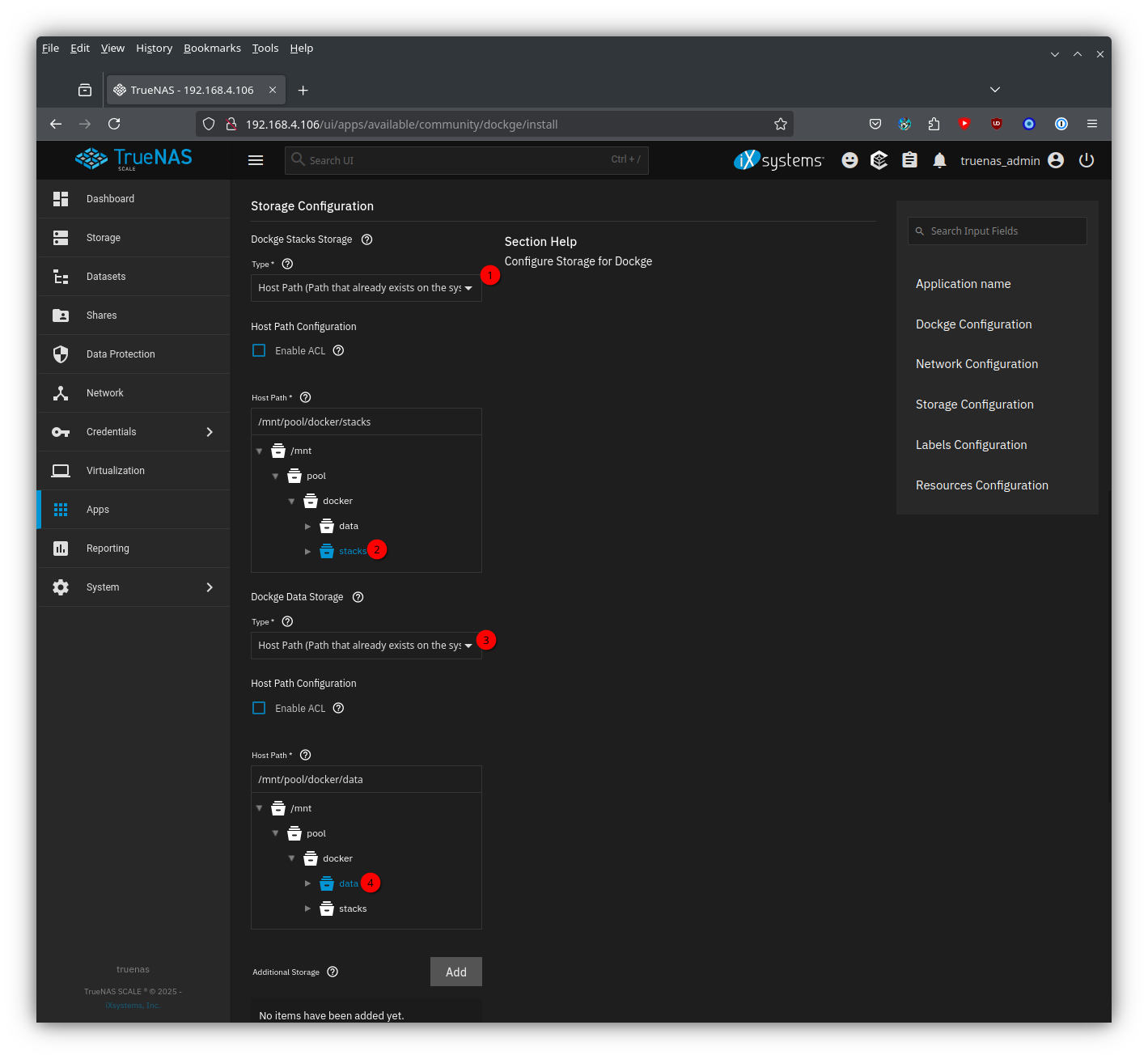
- For
Click on
Install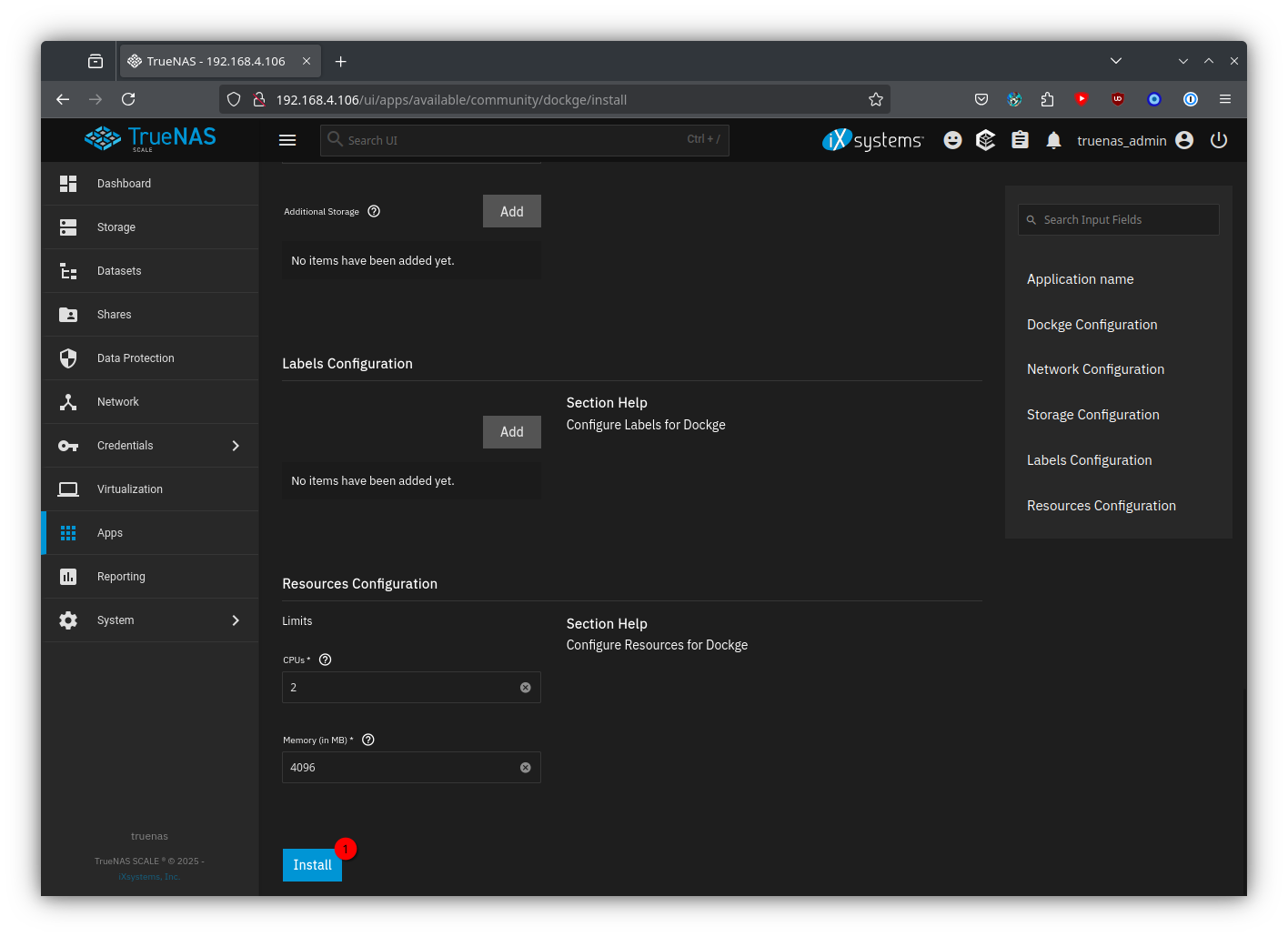
Setting up Dockge
Click on
Web UI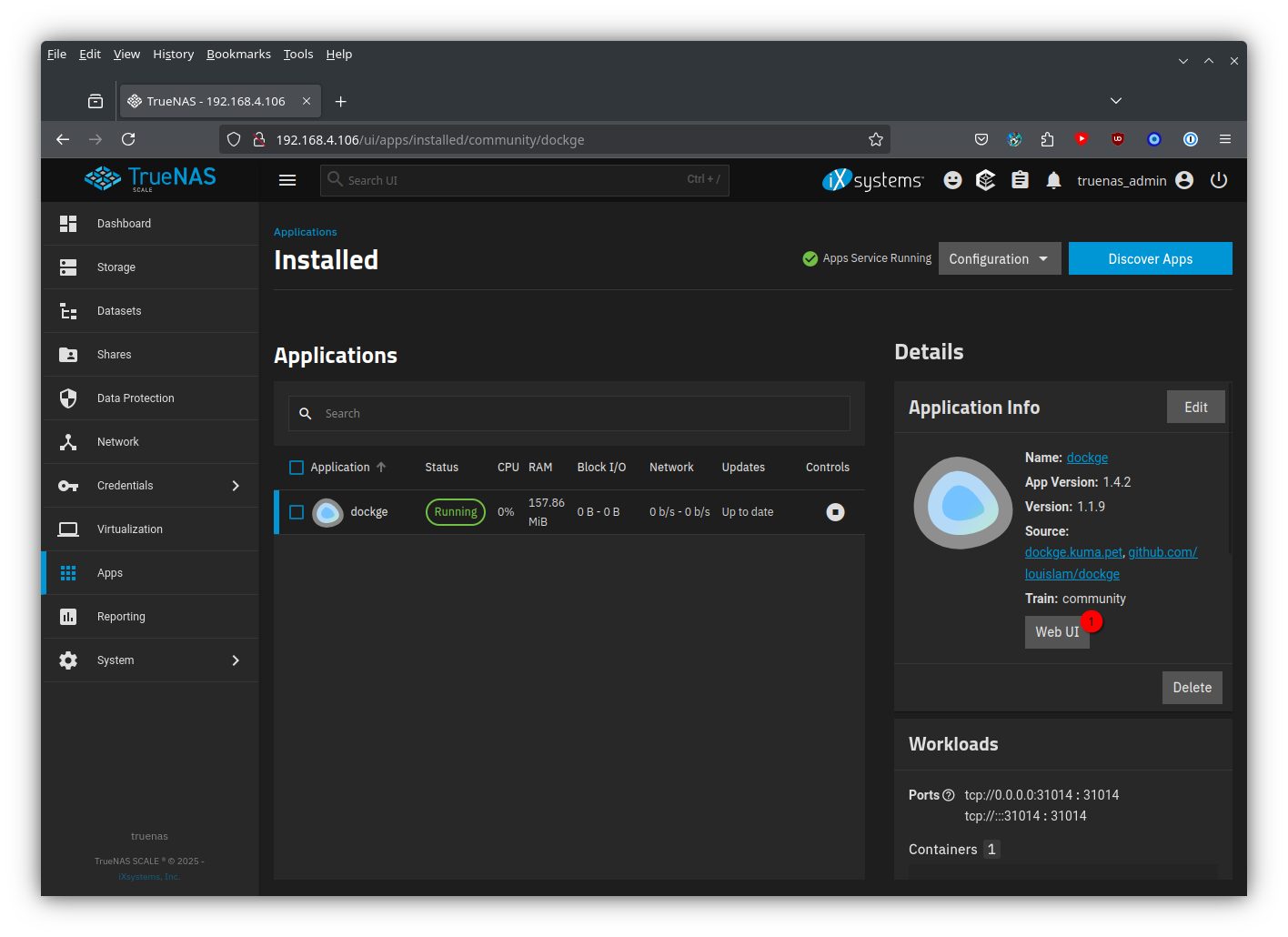
Create the admin account with a new
Usernameand aPassword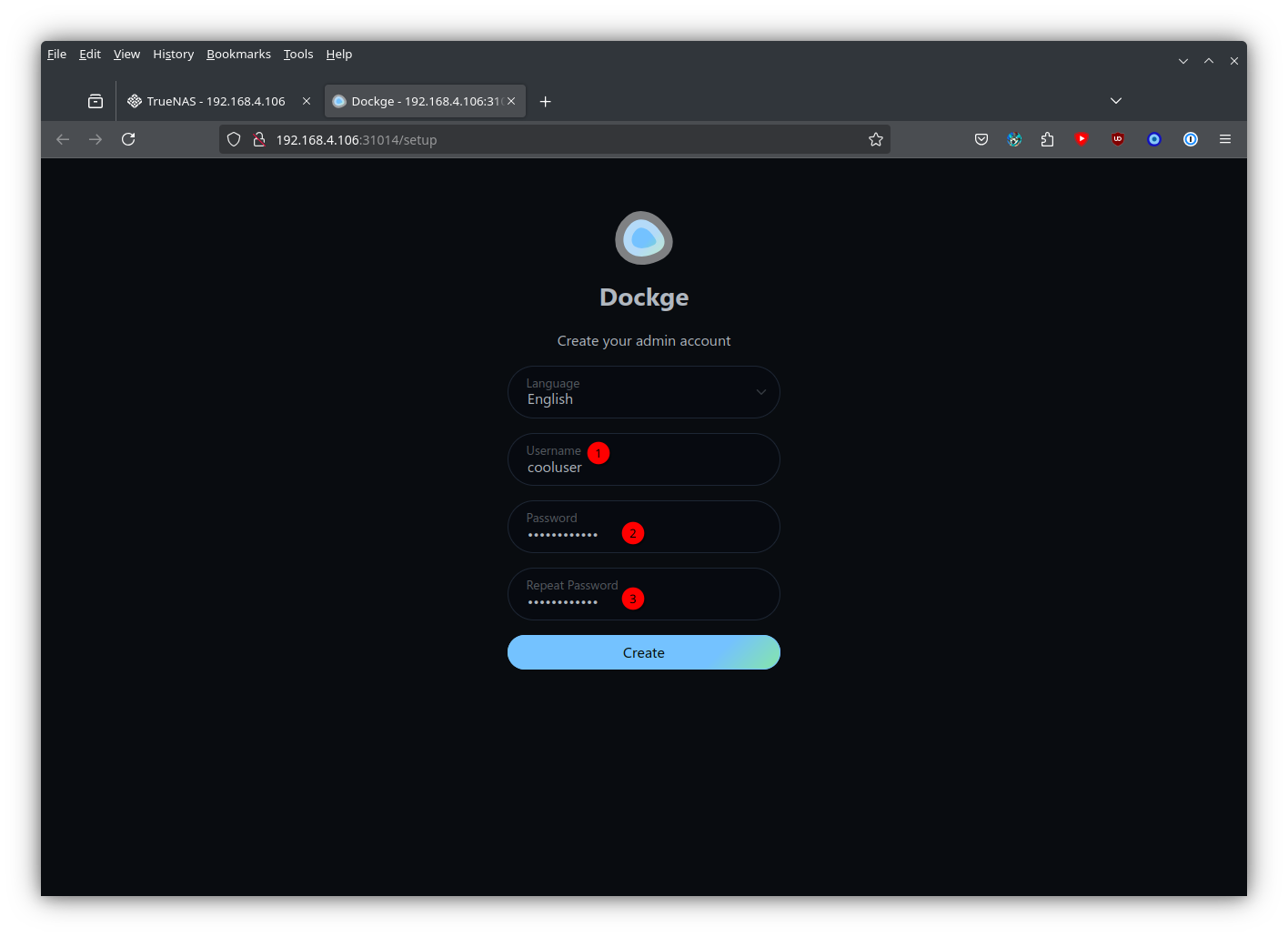
Click on
Compose, entercraftyasStack Name, then paste the compose file from docs.craftycontroller.com into the text area.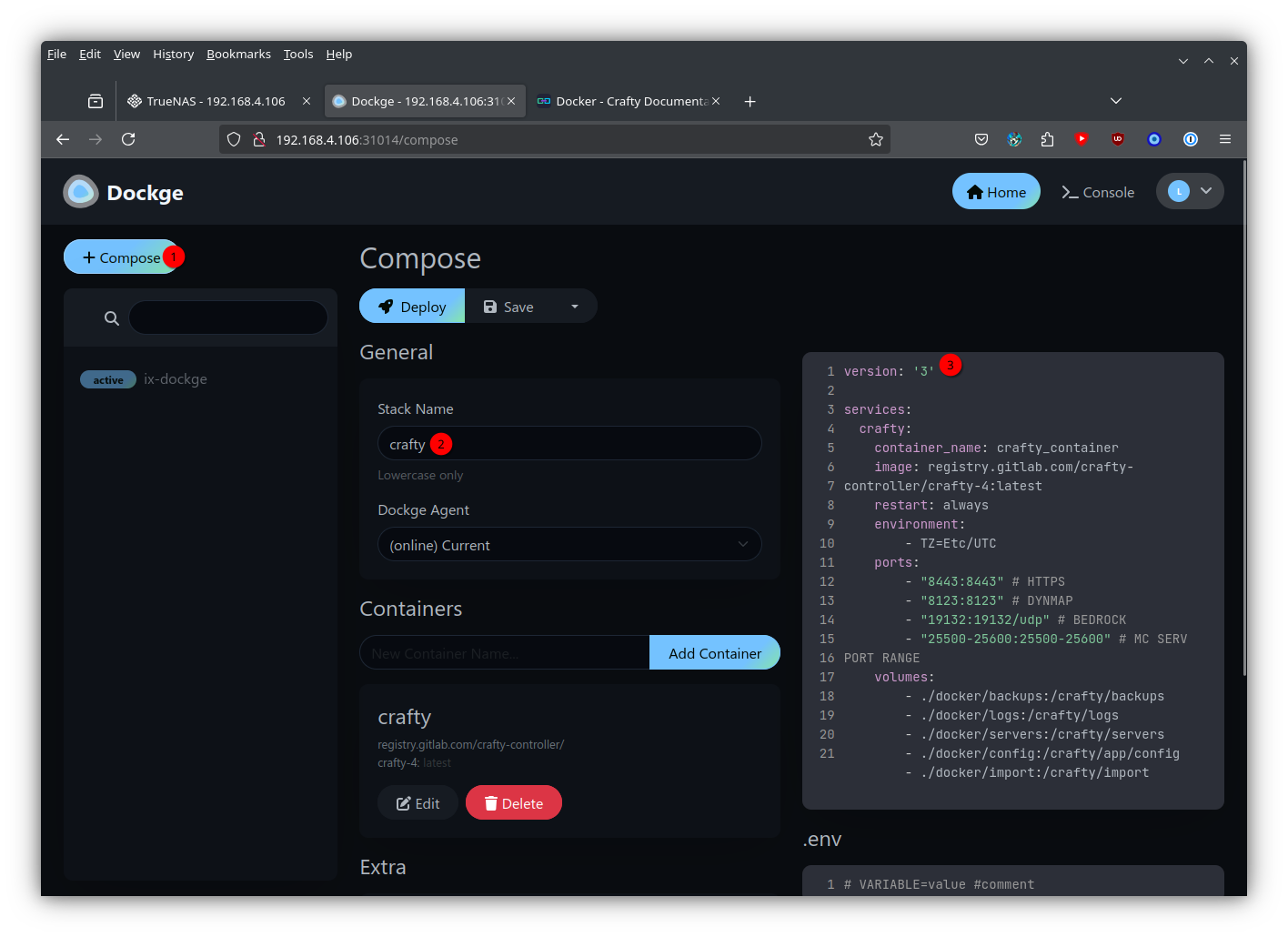
Adjust the docker compose file
Set the timezone to your local timezone. See this article for
TZ identifiers.
Since I live in Europe, I changed the timezone to CET/CEST with the adjustment:From To - TZ=Etc/UTC- TZ=Europe/ViennaRemove the
dockerfolder in all volumes.Dockgealready creates acraftyfolder for us, therefore we can simplify all volumes:From To - ./docker/backups:/crafty/backups- ./backups:/crafty/backups- ./docker/logs:/crafty/logs- ./logs:/crafty/logs- ./docker/servers:/crafty/servers- ./servers:/crafty/servers- ./docker/config:/crafty/app/config- ./config:/crafty/app/config- ./docker/import:/crafty/import- ./import:/crafty/import
Click on
Deploy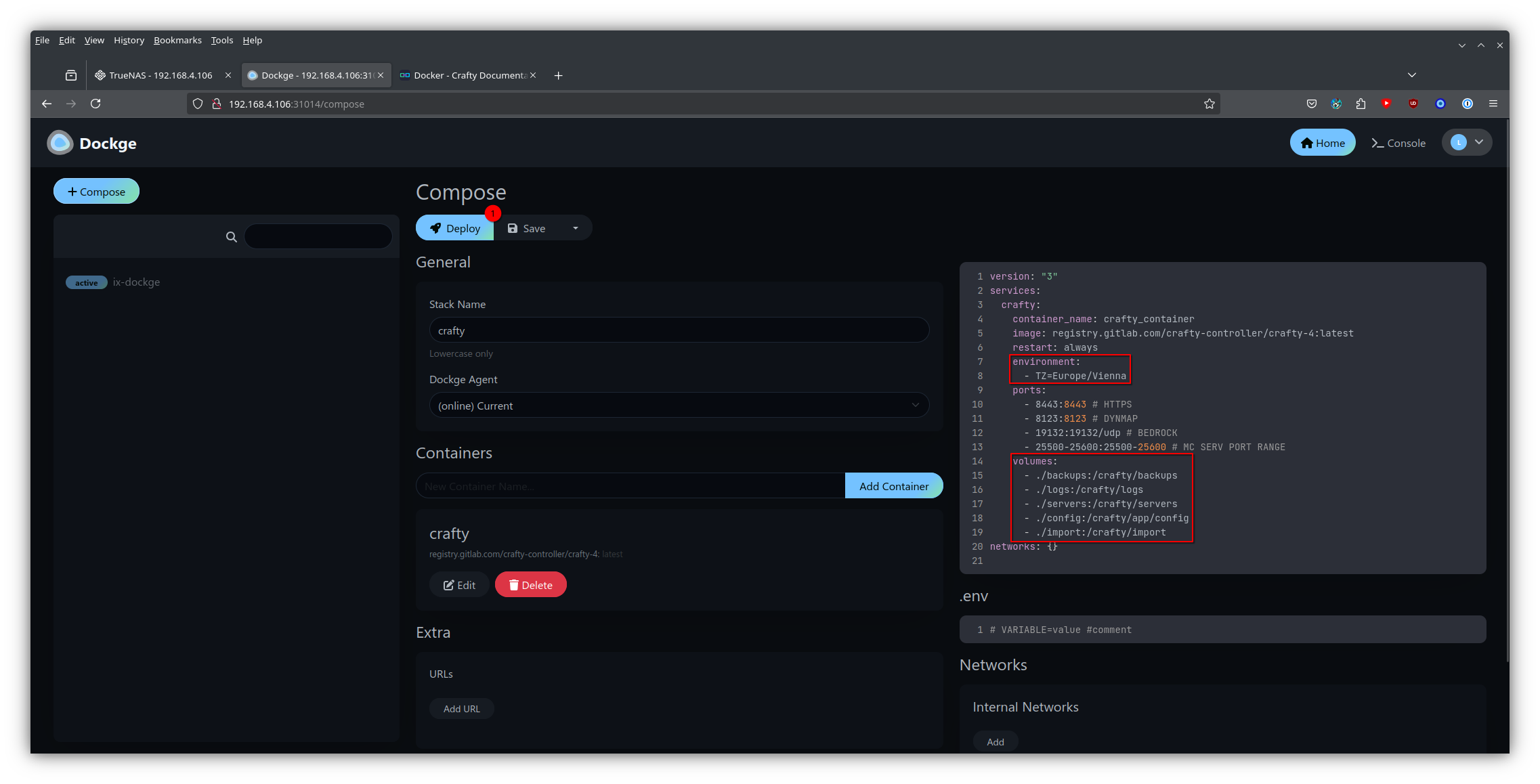
Once crafty finished installing, you should be able to open
https://ipofyourserver:8443. If you don’t know the ip address, look at the url of thedockgebrowser tab.
Logging in to Crafty
Once you have crafty open, you should be greeted with a security warning, click on
Advanced...andAccept the Risk and Continue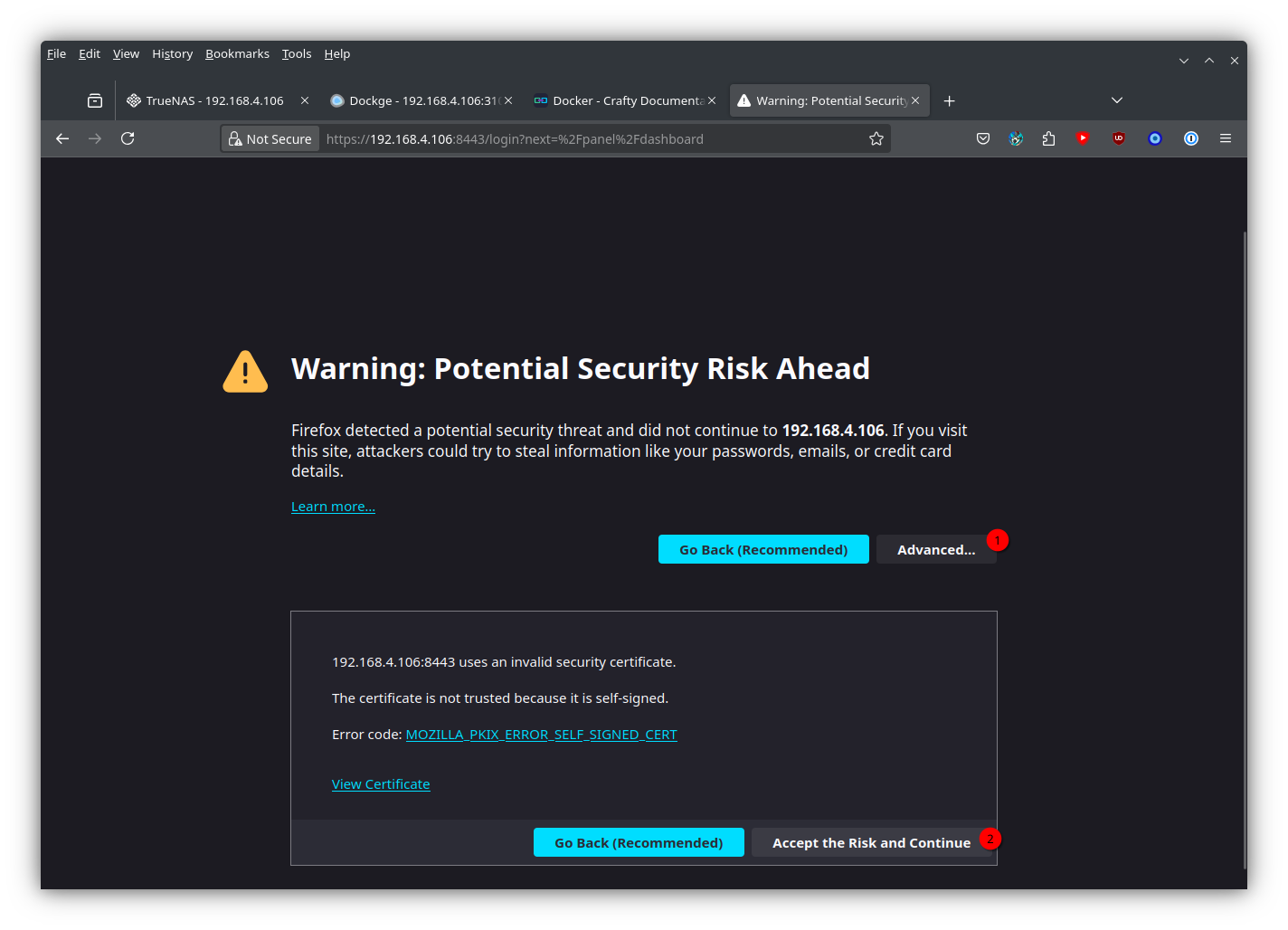
Go back to
Dockge, click onBash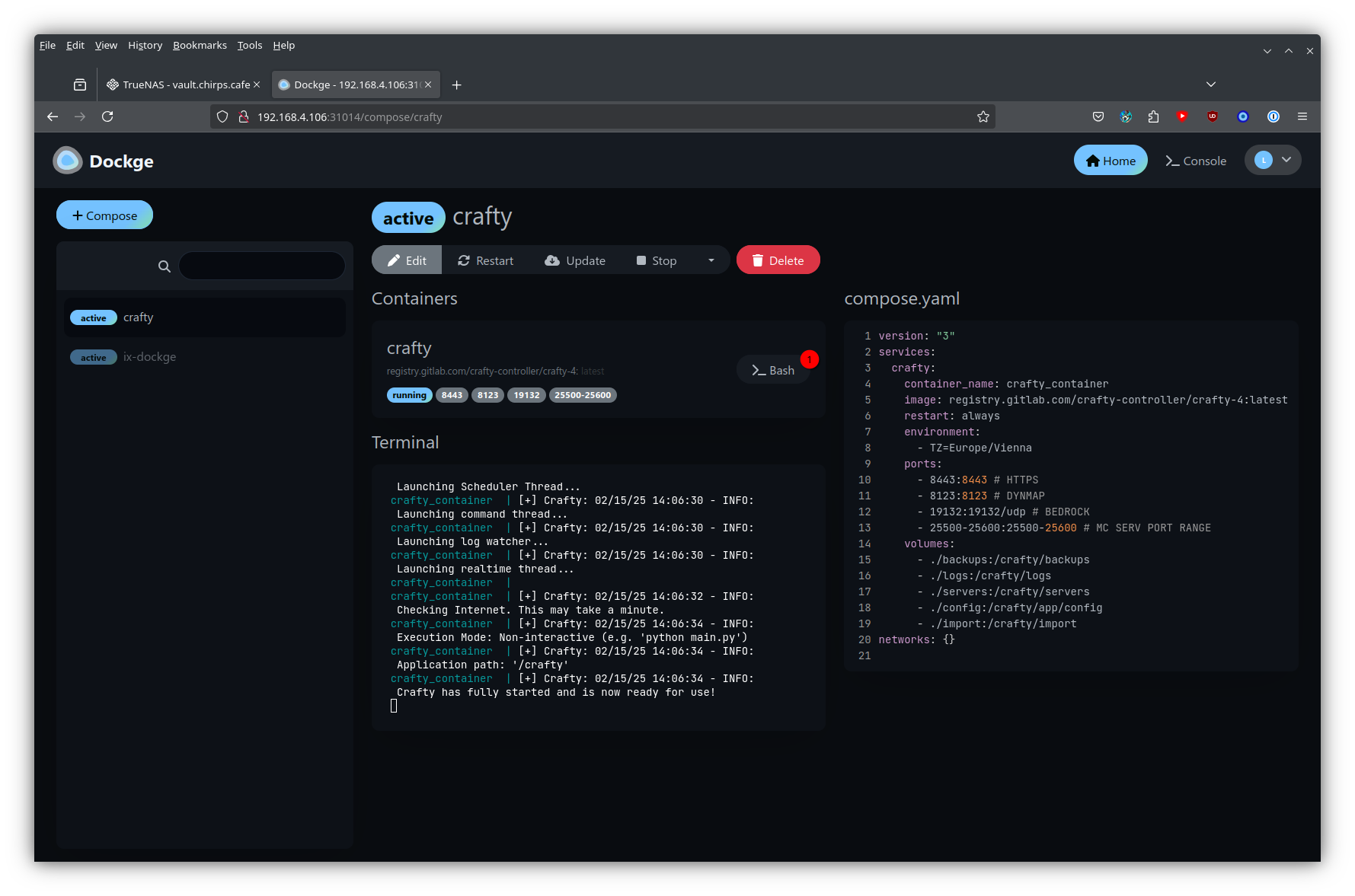
Terminal fun
Change into the
configdirectory of crafty:cd app/configPrint the contents of
default-creds.txt:cat default-creds.txtCopy the
password(without quotes). On windows select it then pressright click->copyto copy it to clipboard. For example25EMWLnOEBv5r0VzvpprihIky8l&otAMrkS#qw^Z&LOL6ym^w05aLB#Lr*2yubDT
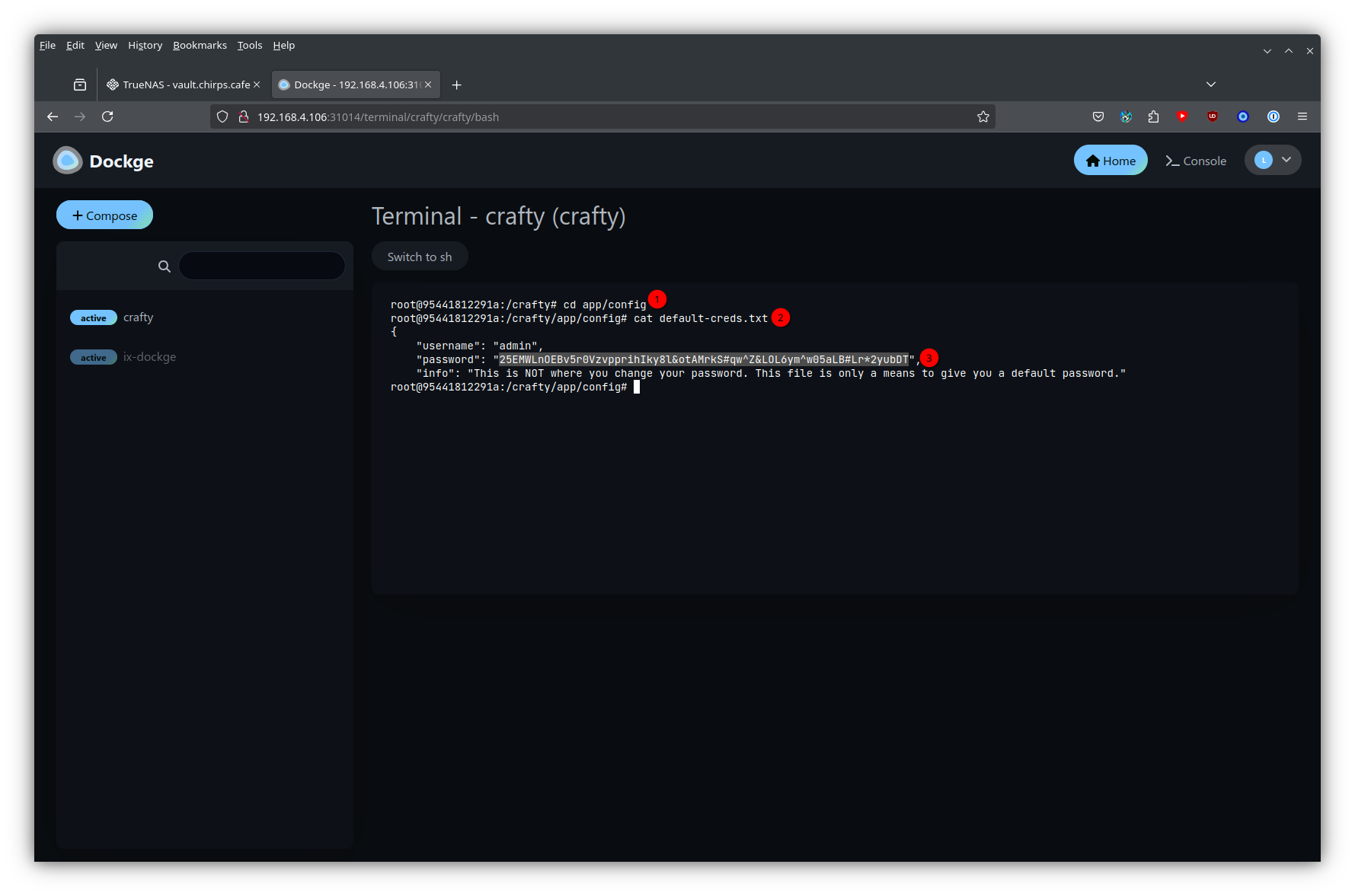
Go back to the
Craftytab, then enteradminasUsernameand enter the password we copied, then click onLog in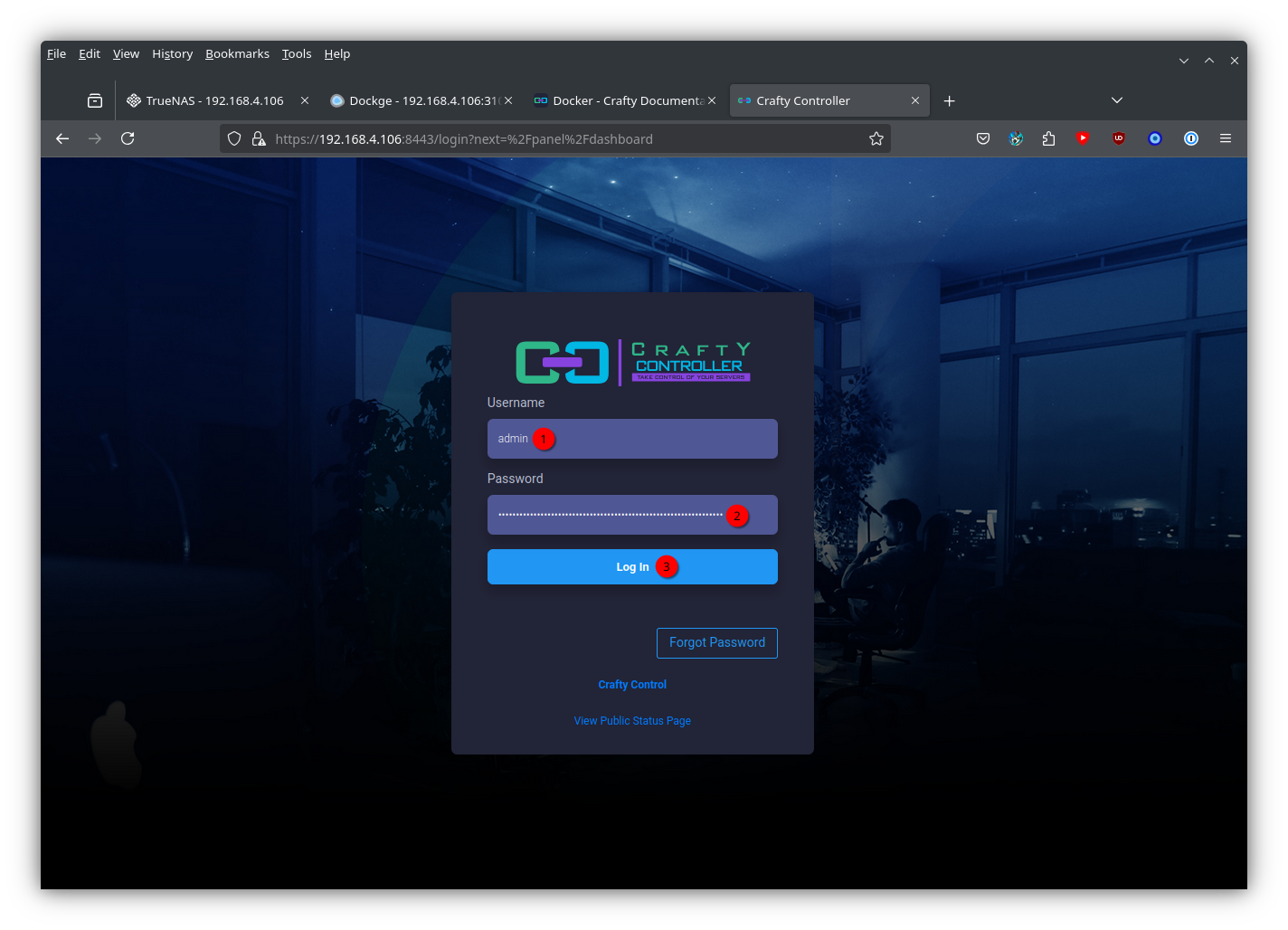
Success!